Kanvaz Guide
Free, open-source, 100% offline reference board for VFX and 3D artists.
Board View
Verified against Kanvaz v9.7.0.
Board View is the main canvas — a free-form 2D space where reference
cards live, get arranged, and get connected. It’s the default view
when you open a board; switch back to it any time from the toolbar or
the M shortcut (which toggles Map View).
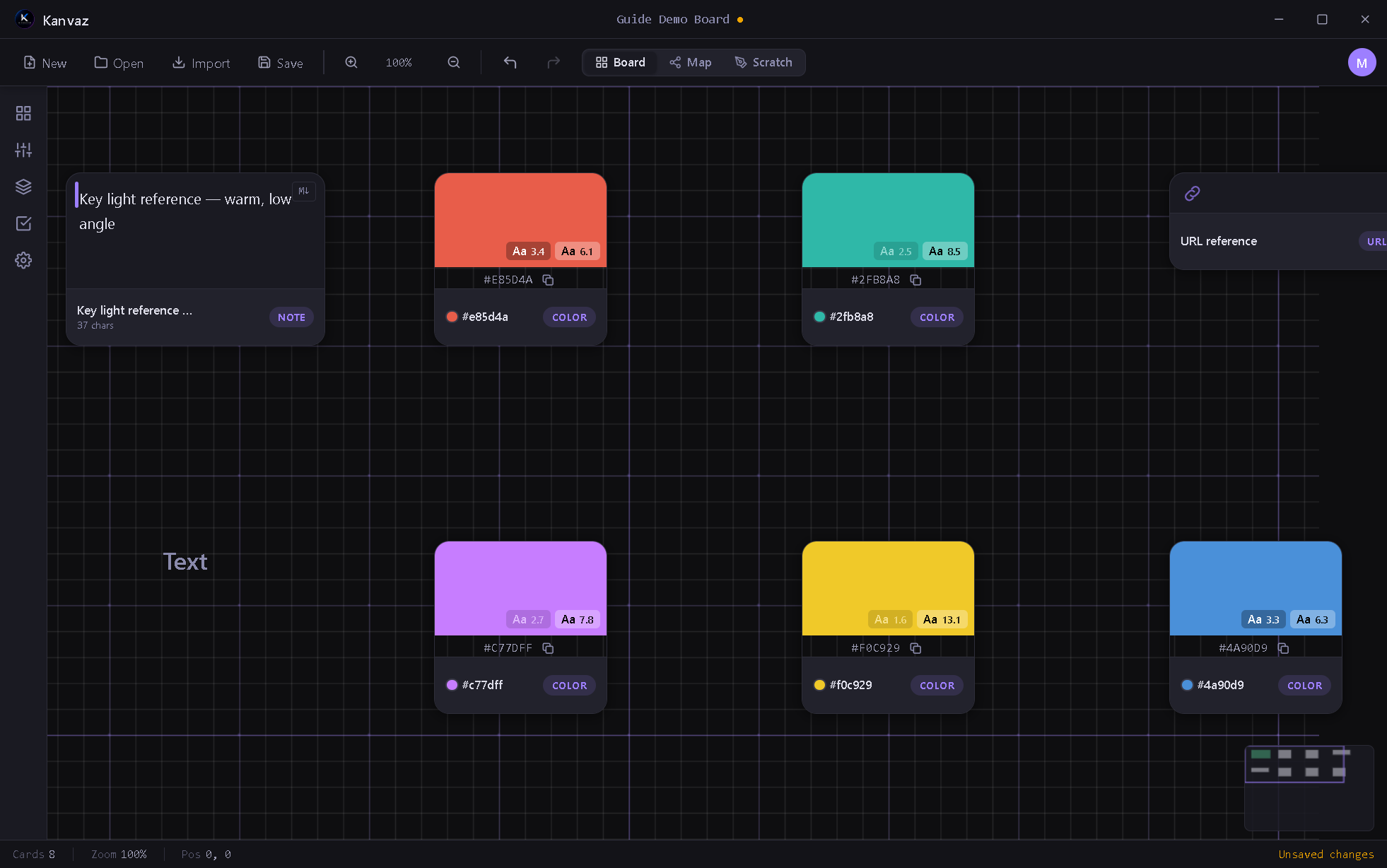
Card types
Every piece of reference material on a board is a card. Kanvaz recognizes:
| Type | What it holds |
|---|---|
| Image | Any raster image — PNG, JPG, WEBP, TIFF, and more |
| GIF | Animated GIFs, played inline |
| Video | Common video formats, with an inline scrubbable player |
| Audio | Audio files with a waveform preview |
| 3D Model | glTF/GLB, OBJ, FBX, and more — see Media Previews |
| Note | A freeform sticky-note style text card |
| Text | A single styled text label |
| Color | A named/hex color swatch — click it to open Kanvaz’s own color picker |
| URL | A link-out reference card |
| File | A reference to a file Kanvaz can’t preview inline (still tracked, still linkable) |
Getting cards onto the board
See Import & Export for every path in detail — drag-and-drop, paste, the Import menu, and PureRef migration all land here as cards.
Selecting and arranging
- Click a card to select it; Ctrl+click or drag a box (Ctrl+drag) to select several
- Drag to move; arrow keys nudge 1px, Shift+arrow nudges 10px
- Ctrl+D duplicates the selection; Delete removes it
- Ctrl+G groups 2+ selected cards, Ctrl+Shift+G ungroups
- Right-click a selection for Align and Distribute — the same
operations exposed to the MCP Bridge as
alignCards/distributeCards/tidyUp
Per-card panels
With a card selected:
E— Properties (transform, opacity, tags, custom key/value properties)C— Connections (wire it to another card — this is what Map View visualizes)A— Annotate (draw directly on an image/video/GIF/3D card)P— Pin / unpinH— hide/show its annotations
Isolate View
Shift+I hides every card except the current selection — useful for
focusing on one cluster of a busy board without deleting or moving
anything. Press it again (or Escape) to bring everything back.
The lock button right next to Minimize in the titlebar (or Ctrl+Shift+L) turns on MoodLock from anywhere, and while Isolate View is on a second small lock also appears in the top-right corner. MoodLock: every toolbar, the titlebar, the side panel and the status bar disappear, Kanvaz stays on top of your other windows, and the board becomes read-only, so what is left is just the reference sitting next to the app you are working in. Camera keys (F, 0, +, -) and the mouse wheel still work, and Left / Right flip through the board’s cards one at a time in reading order (the corner shows “3 / 12”). Kanvaz also remembers where you parked the locked window and puts it back there next time (only if that spot is still on a connected monitor), then restores your normal window when you unlock. In the locked state the corner control also has a drag grip so you can still move the window. Click the lock, press Ctrl+Shift+L, or press Escape to bring everything back exactly as it was. With nothing isolated, Ctrl+Shift+L on a selection isolates it first, and on an empty selection it locks the whole board.
Zoom and navigation
| Action | Shortcut |
|---|---|
| Zoom in/out | Scroll, or +/- |
| Fine zoom | Ctrl+Scroll |
| Pan | Middle-mouse drag, Space+drag, or Alt+drag (works over cards too) |
| Reset zoom | 0 |
| Fit all cards | F |
| Zoom to selection | Shift+F |
| Save/recall a view | Ctrl+1..9 to save, 1..9 to jump back |
The full reference, including every card and file shortcut, is in Keyboard Shortcuts.
Related
- Map View — see the same cards as a connection graph
- Side Panel — Properties, Layers, Tasks, Settings
- Templates — start from a curated card layout instead of blank